Version 2.0 for macOS
SnapDraw
Pin any part of your screen on top, draw on it, and copy it as an image or a file path.
Free for 7 days · macOS 13 or later · Apple silicon and Intel
For agentic coding
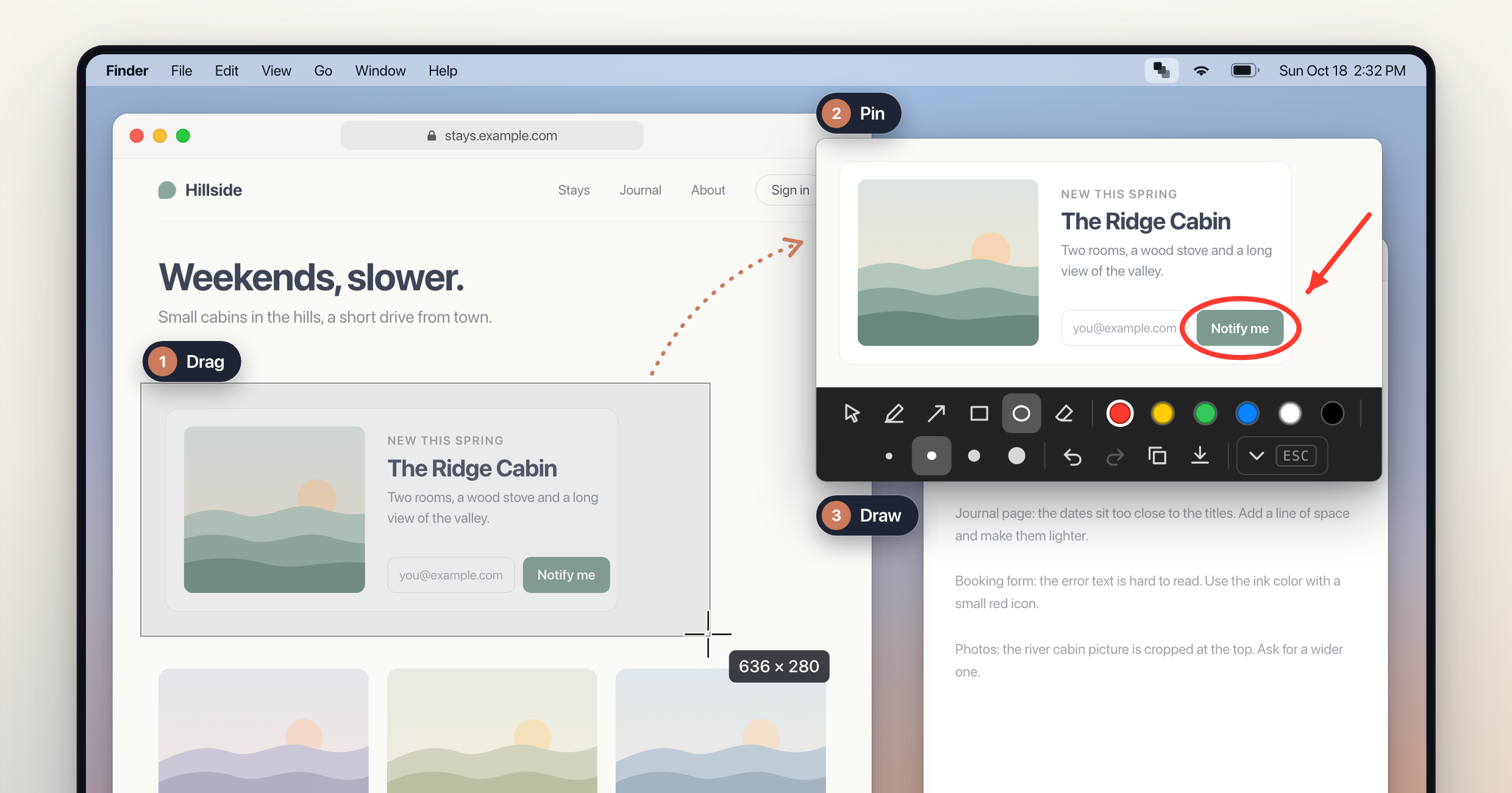
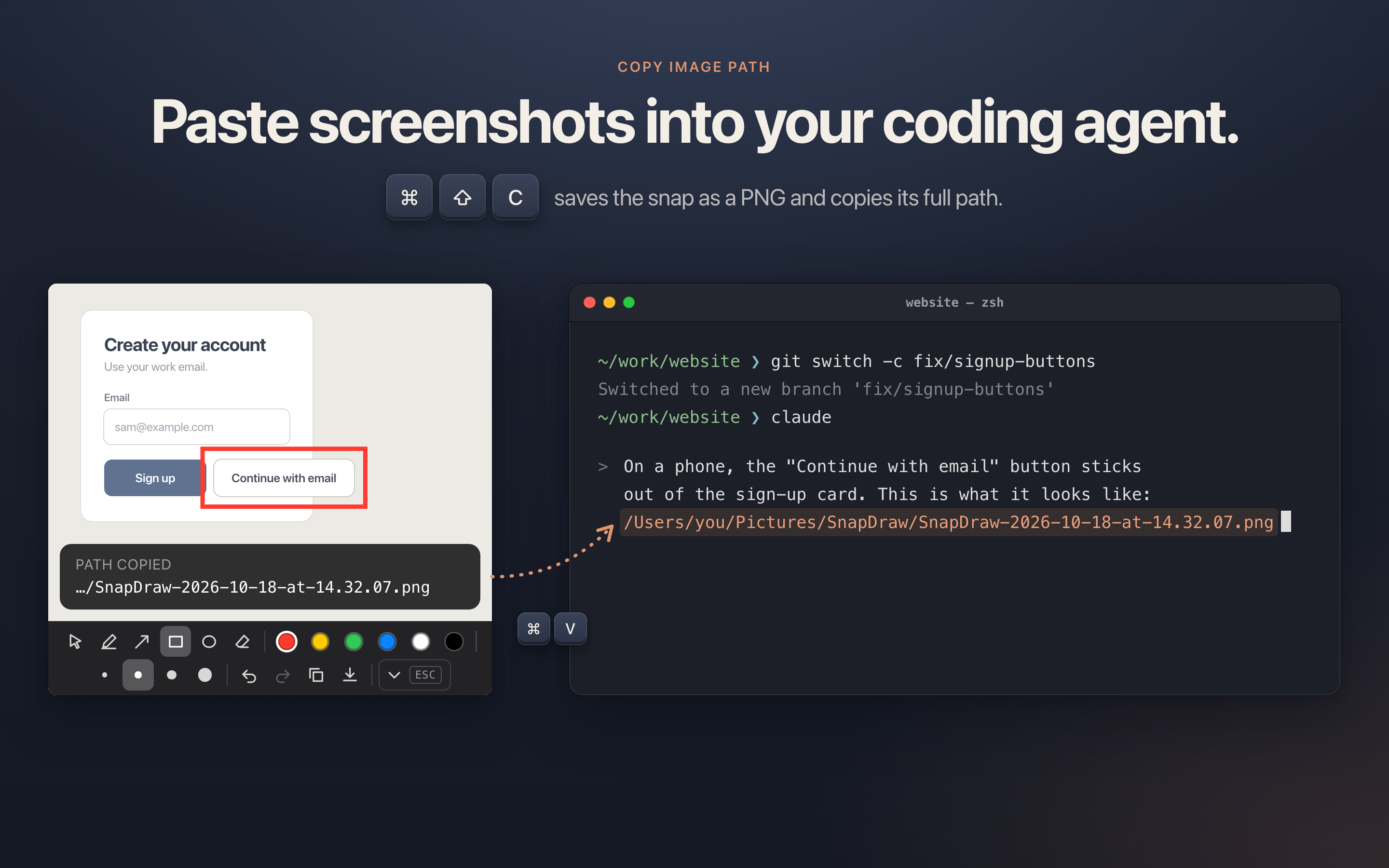
Copy Image Path
One shortcut saves the snap as a PNG and copies its file path. Paste the path into Claude Code, Codex CLI or Cursor's agent, along with your question.
- 1
What you press
The Copy Image Path shortcut, on any snap. You can change it in Preferences.⌘⇧Cby default - 2
What gets saved
A PNG of the snap at full resolution, with your drawing on it. It goes in your captures folder, ~/Pictures/SnapDraw unless you pick another one in Preferences. - 3
What lands on the clipboard
The full path to the file, as plain text:/Users/you/Pictures/SnapDraw/SnapDraw-2026-10-18-at-14.32.07.png
Features
Pin it, draw on it, move on
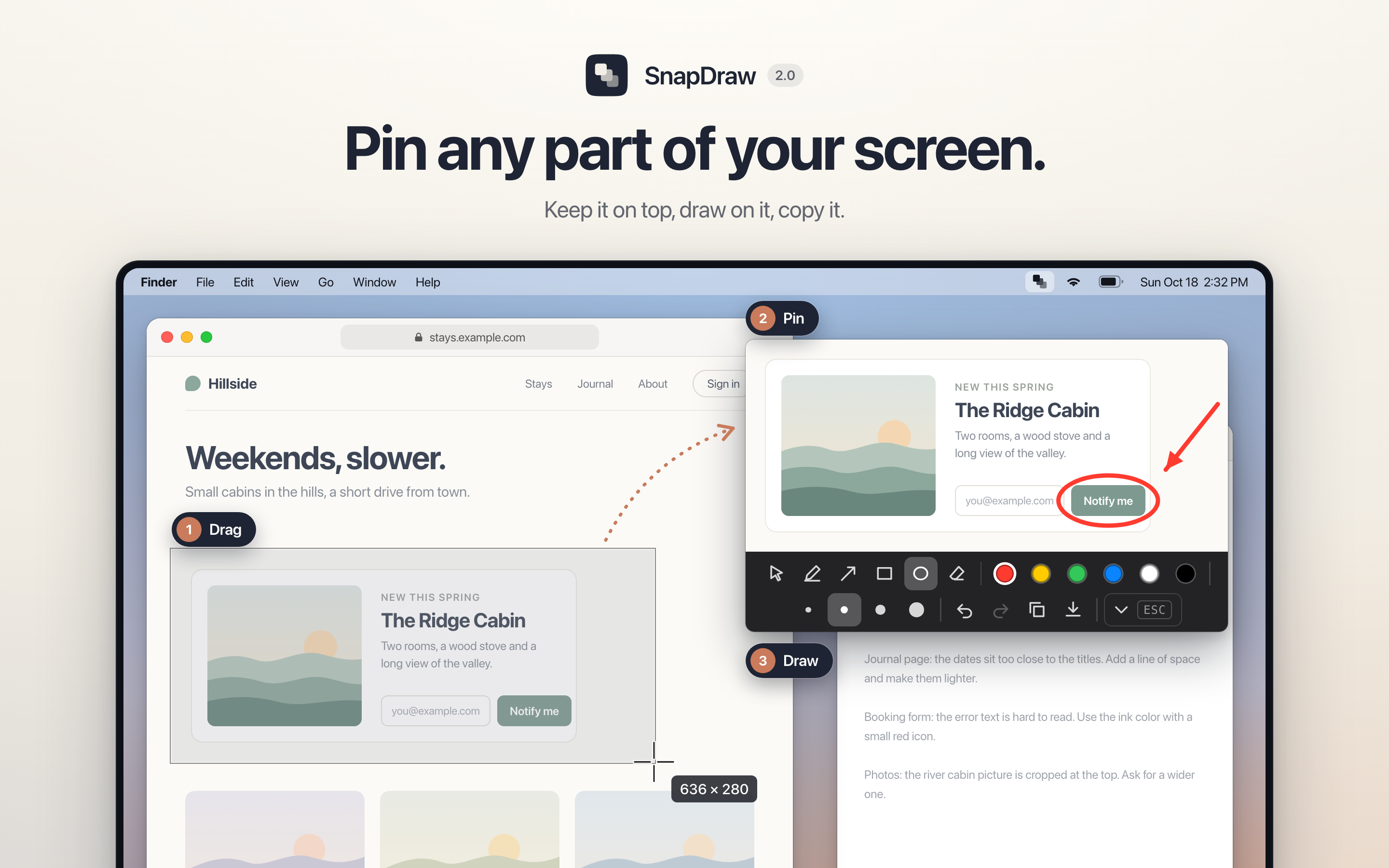
Drag over part of the screen. It stays on top as a snap until you close it.
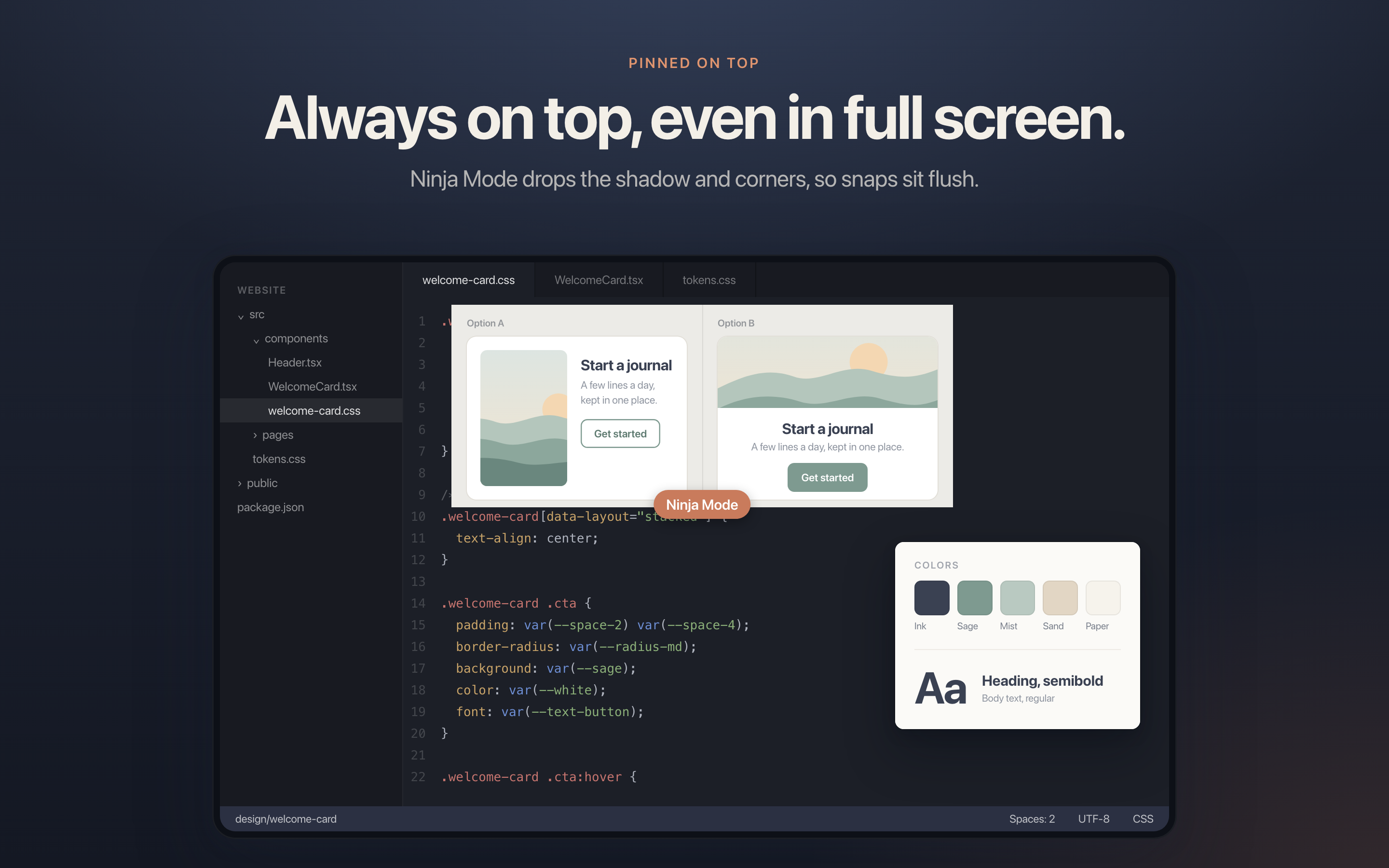
Pinned on top
A snap floats above every app and every desktop. It stays in view when another app goes full screen.
Draw on it
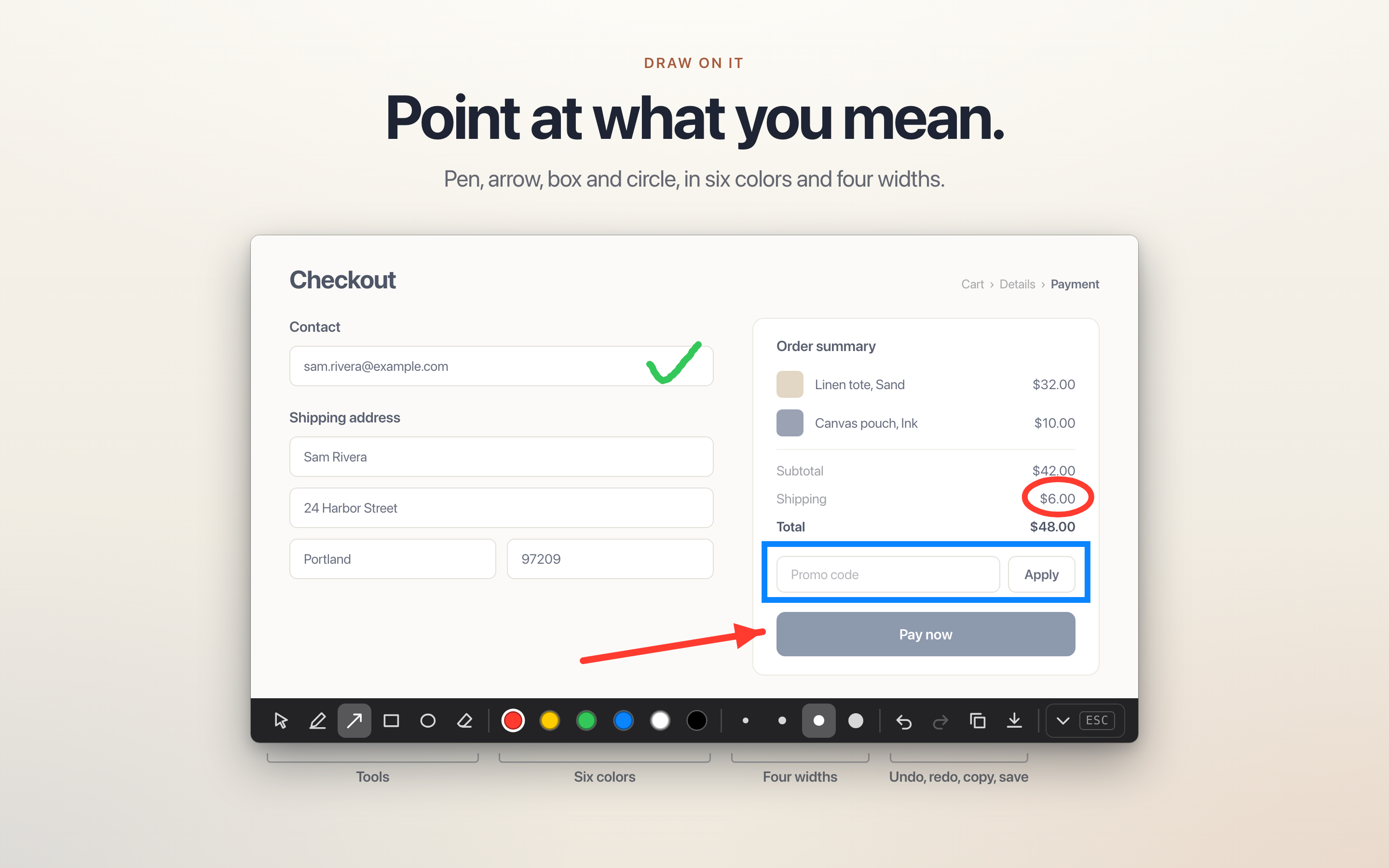
Pen, arrow, box and circle, in six colors and four line widths. Select, move or erase a shape after you draw it. Undo and redo.
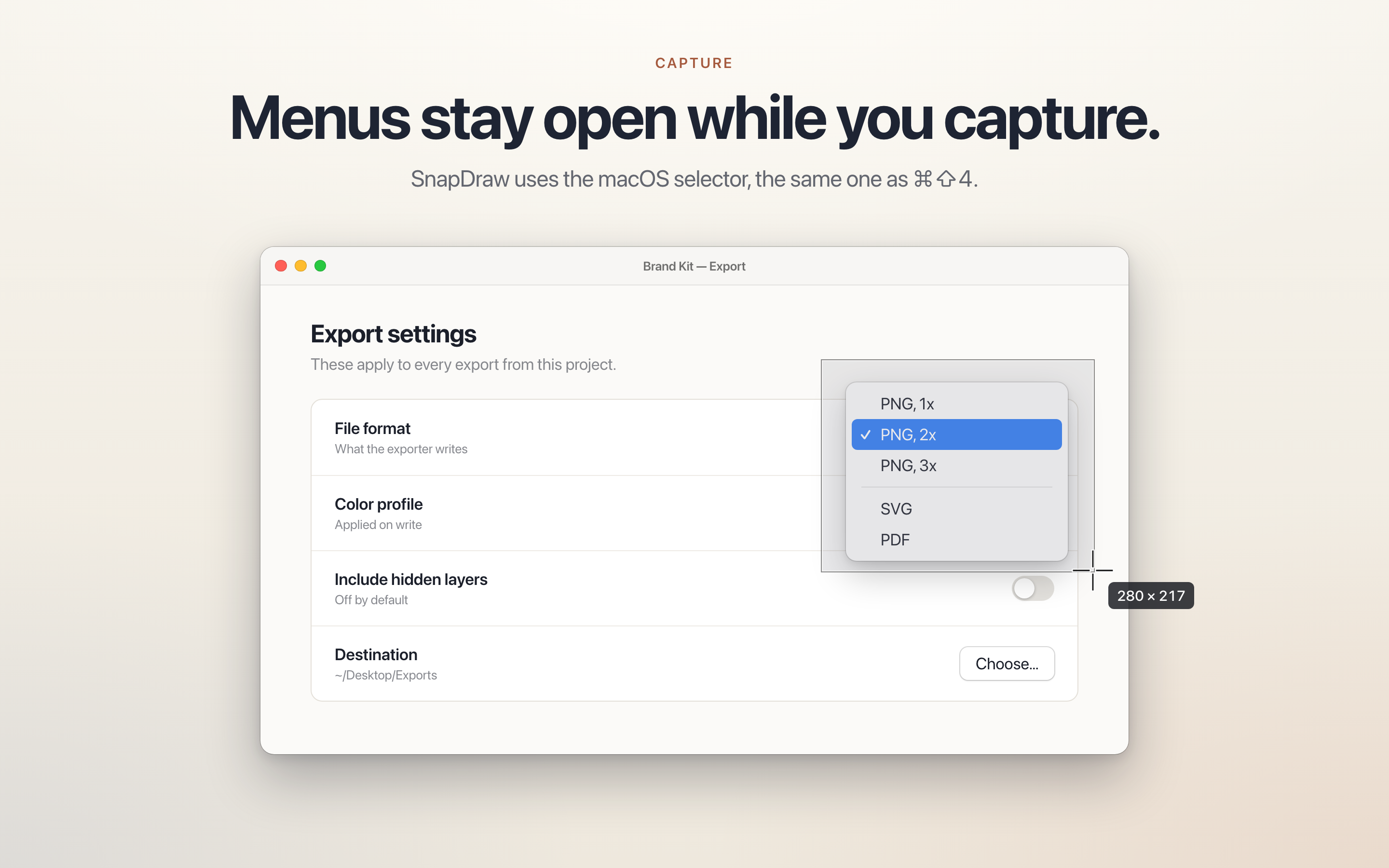
Menus stay open
SnapDraw uses the macOS selector, the same one as ⌘⇧4. Hover menus, tooltips and popovers stay open while you select.
Ninja Mode
No shadow and no rounded corners, so two snaps sit flush, edge to edge.
Multiple displays
Works across displays with different scaling. Move a snap from a Retina screen to a standard one and your drawing stays where you put it.
Size as you drag
The selector shows the width and height while you drag. Press Space to capture a whole window instead.
Tools out of the way
A snap shows only the image until you point at it. The tools open in a strip below it, so the capture keeps its size and position.
Full-resolution output
Copy and save draw your marks again at the capture’s own resolution, so lines stay sharp.
Also
- Adjustable opacity
- Drag and resize, proportions kept
- Copy the image or save it to a file
- Color picker, copied as text
- Your own capture shortcut
- Choose the captures folder
- Start at login
- Close with Esc or a double-click
Screenshots
SnapDraw 2.0
Pricing
Try it for 7 days, then pay once
SnapDraw 2.0
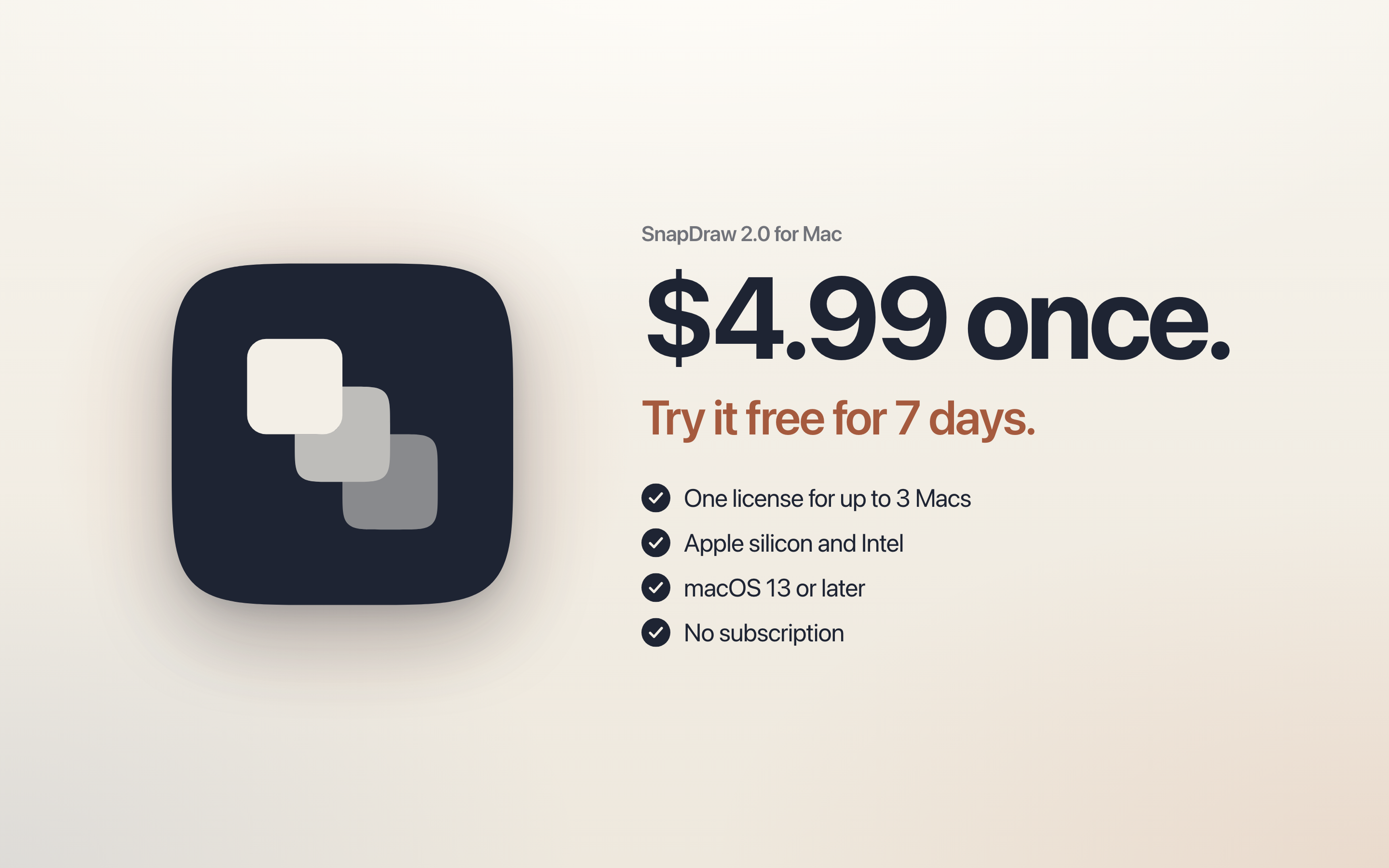
$4.99one-time purchase
Download it and use it free for 7 days. To keep using it, buy a license once. No subscription.
- Everything on this page
- One license for up to 3 Macs
- Apple silicon and Intel
- macOS 13 or later
Checkout is handled by Polar. Refunds within 14 days.
FAQ
Questions
Does it run on Apple silicon and Intel Macs?
Yes. SnapDraw is one universal app that runs natively on both.
Which version of macOS do I need?
macOS 13 Ventura or later.
Does anything leave my Mac?
Your captures, your drawings and the files you save stay on your Mac. The app goes online for two things: license checks with Polar (when you enter your key, about once a week after that, and when you deactivate it), a daily check for updates, and anonymous usage data (which features are used and which errors happen), which you can turn off as the privacy policy describes. It never sends your screenshots, file names or license details. Details are in the privacy policy.
How does the free trial work?
Download SnapDraw and use it for 7 days. To keep using it after that, buy a license. It is a one-time purchase, not a subscription.
How many Macs can I use it on?
Up to 3 Macs at a time with one license key. To move it to another Mac, choose Deactivate on This Mac in the License window, then enter the key on the new Mac.
Do updates cost extra?
Updates we release for SnapDraw work with the same key. You pay once, and nothing renews.
Why does macOS ask for Screen Recording permission?
macOS asks before any app can capture the screen, and SnapDraw needs it to take a snap. You can turn it on or off in System Settings, under Privacy & Security.
What changed in 2.0?
SnapDraw 2.0 is a full rewrite. Capture now uses the macOS selector, the same one as ⌘⇧4, so hover menus, tooltips and popovers stay open while you select.